
New Settings for Outlook for Windows (Outlook New)
- This page explains the steps to set up a new account for Outlook for Windows (ver. 1.2025.1209.500).
-
The items referred to with brackets (= [ ]) in this guide are unique data to each customer.
In actual settings, please replace them with your own information. - You need to be connected to the internet in order to follow the steps below.
To use Outlook for Windows, please apply for the IMAP Function.
IMAP Function: Service Page
New Settings
-
STEP1
Start the software
To start Outlook for Windows, click the Outlook icon in the Start menu or the icon on the desktop.
The settings differ from Outlook Classic.
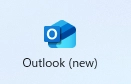
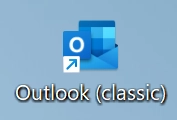
If you are using the Outlook version with either of the icons below or if the steps written in this guide differ from your screen, please refer to the following setup guide.
New Settings for Microsoft Outlook (365/2019 or Later) -
-
STEP2
Startup
The appearance of the window after startup differs depending on your Outlook for Windows.
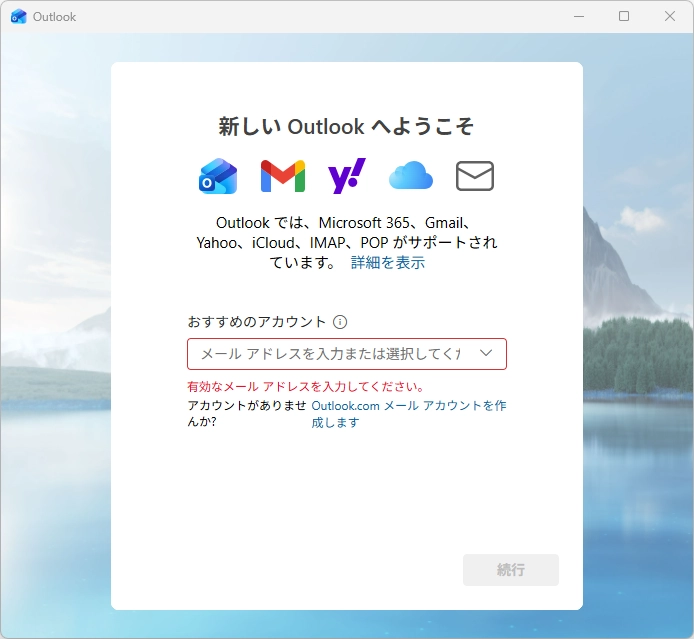
Configure your settings as written on the window.Launching for the first time
If the following window appears, follow the steps in Step 3 Add Account.
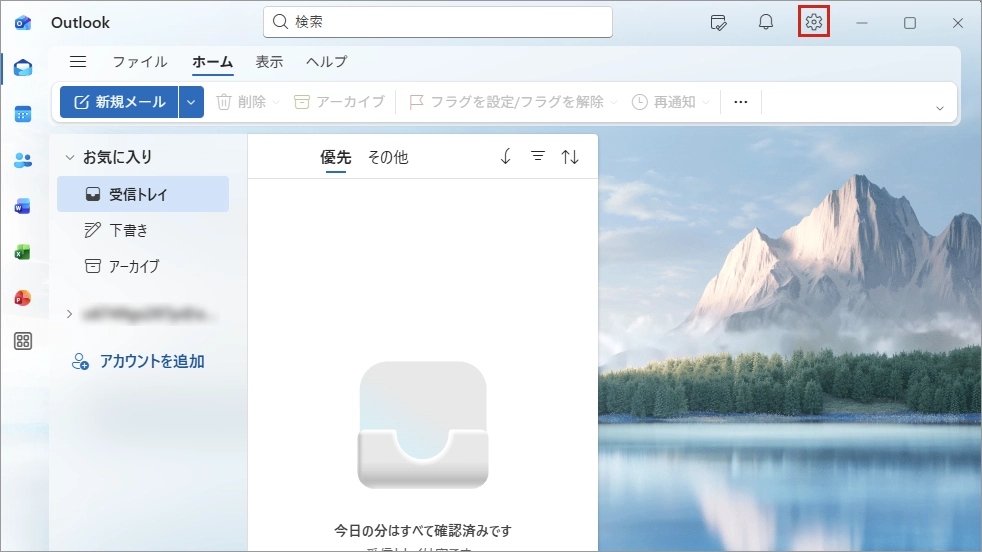
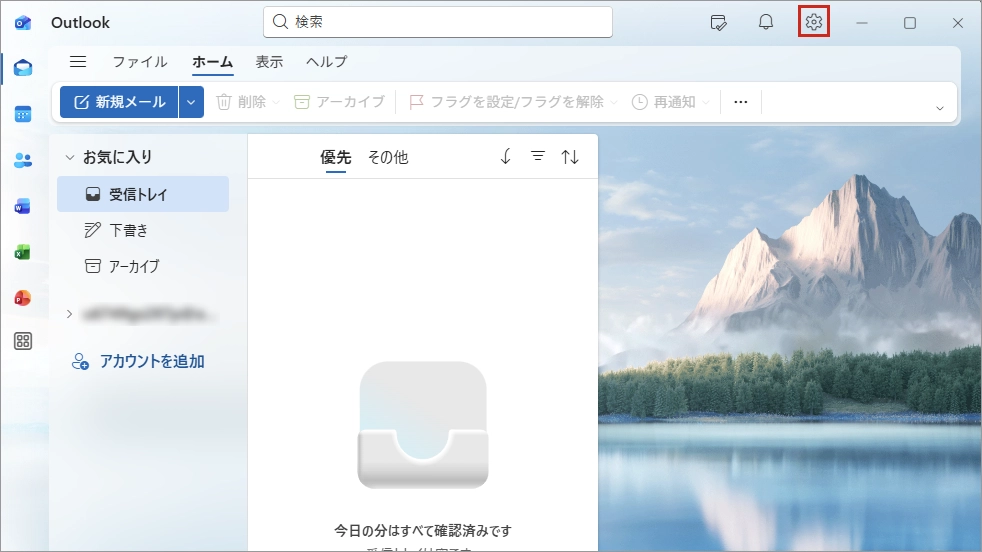
If the main window of Outlook appears
Click the gear icon in the upper right-hand side of the window.
Choose アカウントの追加 (= Add Account) in the menu.
Please follow the steps in Step 3 Add Account.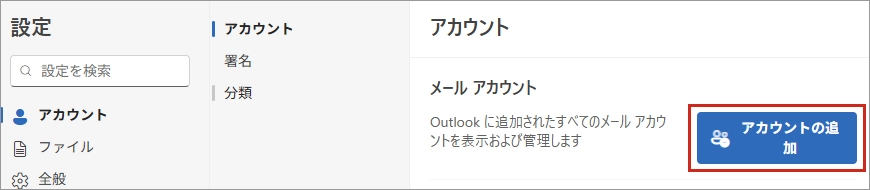
-
STEP3
Add Account
Enter your Asahi Net email address.
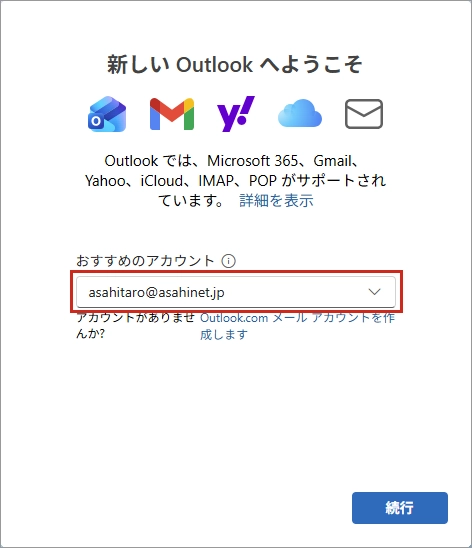
メールアドレス
Email Address[Your email address]
E.g., asahitaro@asahinet.jp -
STEP4
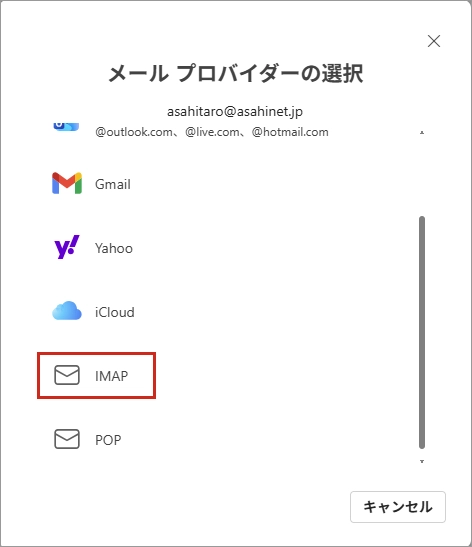
Select IMAP
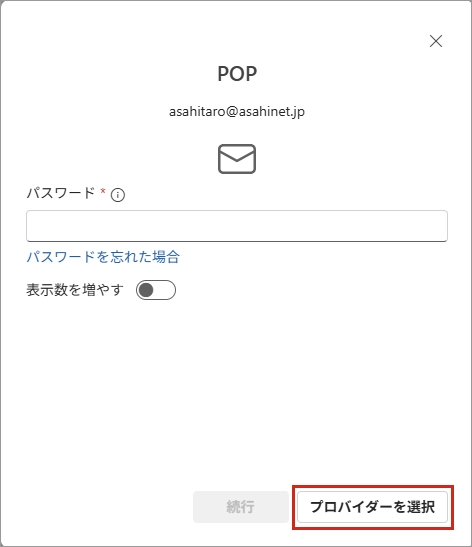
When a window to enter your password shows, click プロバイダーを選択 (= Select provider) in the lower right-hand corner.
-
-
STEP5
Enter setup information
Enter the password and enable 表示数を増やす (= Show more).
The advanced setting window will be shown. Refer to the following table to set up, and click 続ける (= Continue).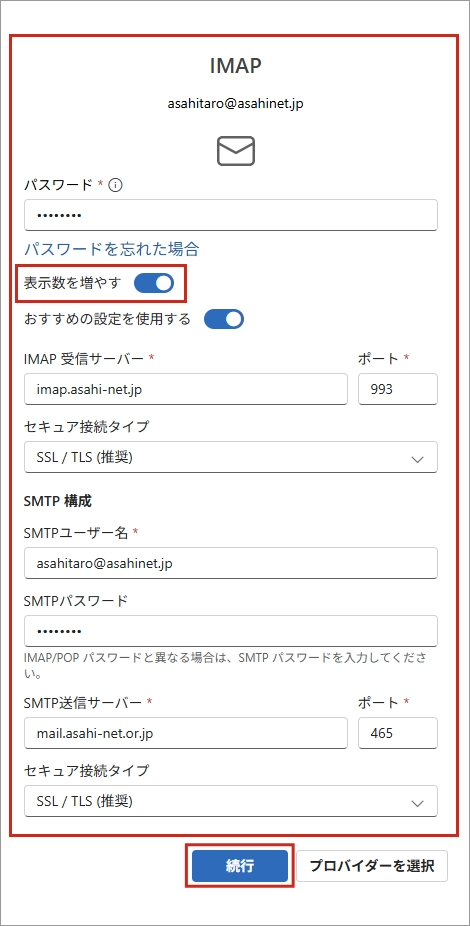
パスワード (= Password) [Password corresponds to the Asahi Net ID] - *Enter all in lowercase characters.
表示数を増やす(= Show more) Enable おすすめの設定を利用する (= Use recommended settings) On your preference IMAP受信サーバー (= IMAP Incoming server) imap.asahi-net.jp * ポート (= Port) 993 セキュア接続タイプ (= Secure connection type) SSL/TLS(推奨) (= SSL/TLS [Recommended]) SMTPユーザー名 (= SMTP username) [Your Asahi Net email address you wish to use] SMTPパスワード (= SMTP password) [Password corresponds to the Asahi Net ID] - *Enter all in lowercase characters.
SMTP 送信サーバー (= SMTP Outgoing server) mail.asahi-net.or.jp * ポート (= Port) 465 セキュア接続タイプ (= Secure connection type) SSL/TLS(推奨) - *Please note that the last letter of the SMTP server name varies depending on the server.
-
STEP6
Sync your IMAP account
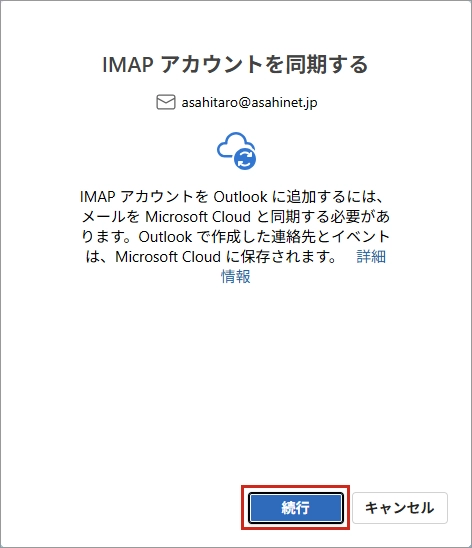
When the message “IMAPアカウントを同期する (= Sync your IMAP account)” shows, click 続行 (= Continue).
-
STEP7
Setting complete
When you complete your setting, the Outlook window will be shown.
If you are able to receive email in your inbox automatically, your setup is complete.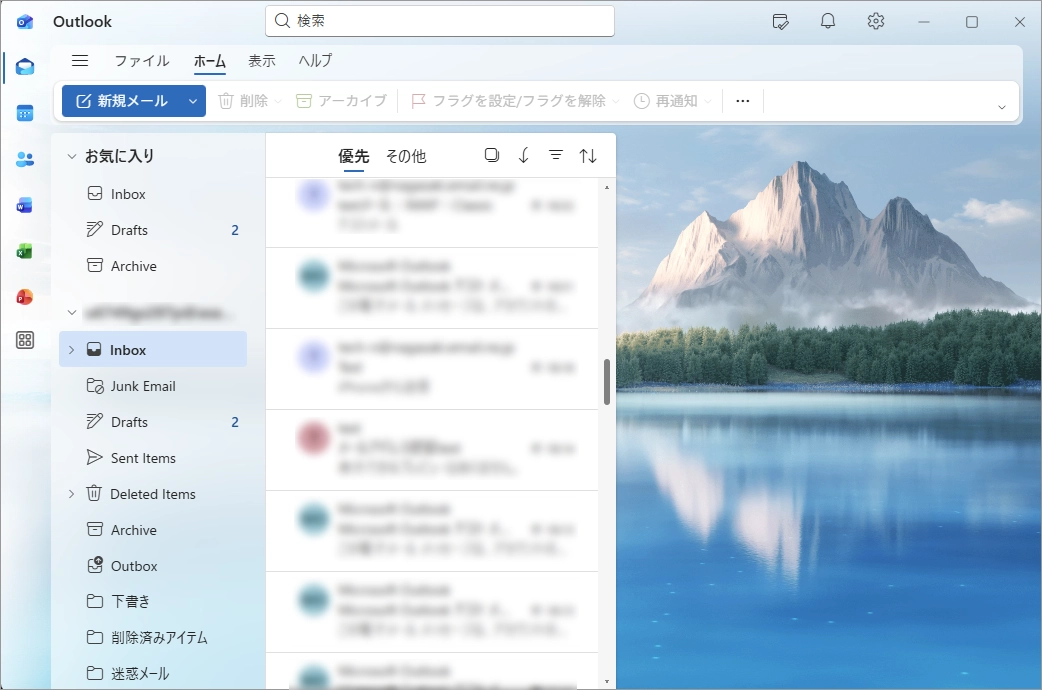
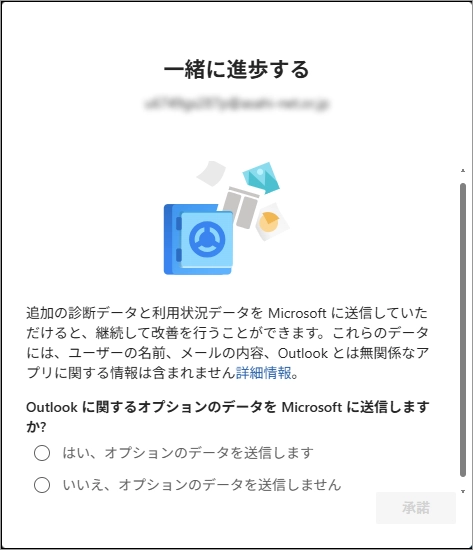
If the window below appears, set this option according to your preference.


To switch languages
If you wish to switch the language, please follow the steps below.
Click the gear icon in the upper right-hand side of the window.
Click General.
Click the Language (Country/Region) pull-down menu and select your language.
![[ General ] をクリック](/asset/img/support/guide/mail_setting/img-outlook-new-01_16.webp)