
Confirm Settings for Thunderbird ver.141
- This page explains the steps to confirm your settings for Thunderbird 141.0 for Windows.
- The items referred to with brackets (= [ ]) in this guide are unique data to each customer.
In actual settings, please replace them with your own information. - The [ASAHI Net User ID] used in this guide as an example is [ab4t-ash].
- If you are using the IMAP function, see the following page for how to confirm your settings.
Mailer Setup: Before Setting Up
Confirm Settings
-
STEP1
Start the software
Start Thunderbird.

-
STEP2
アカウント設定 (= Account Settings)
Click the menu icon
 in the upper right-hand side of the window.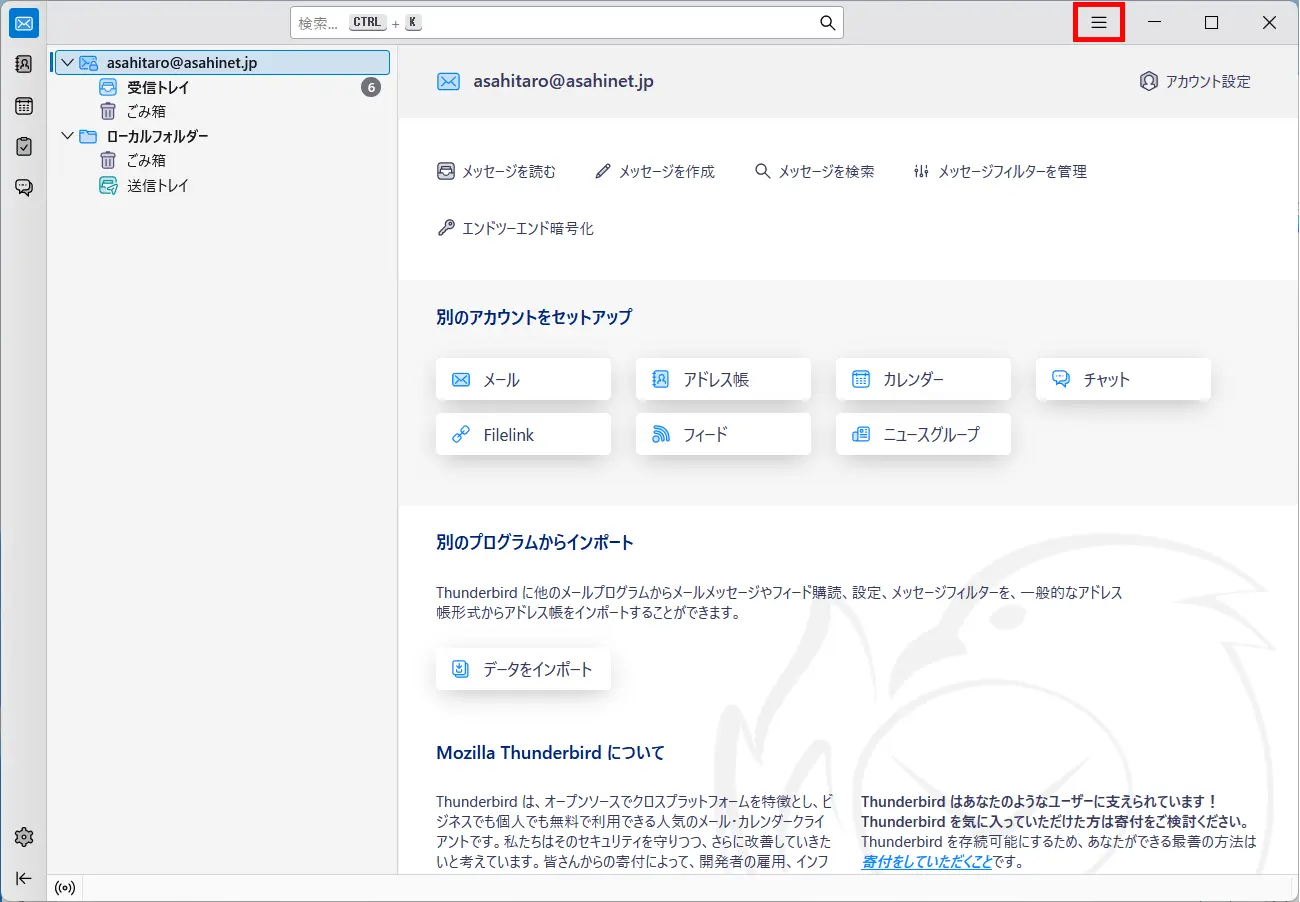
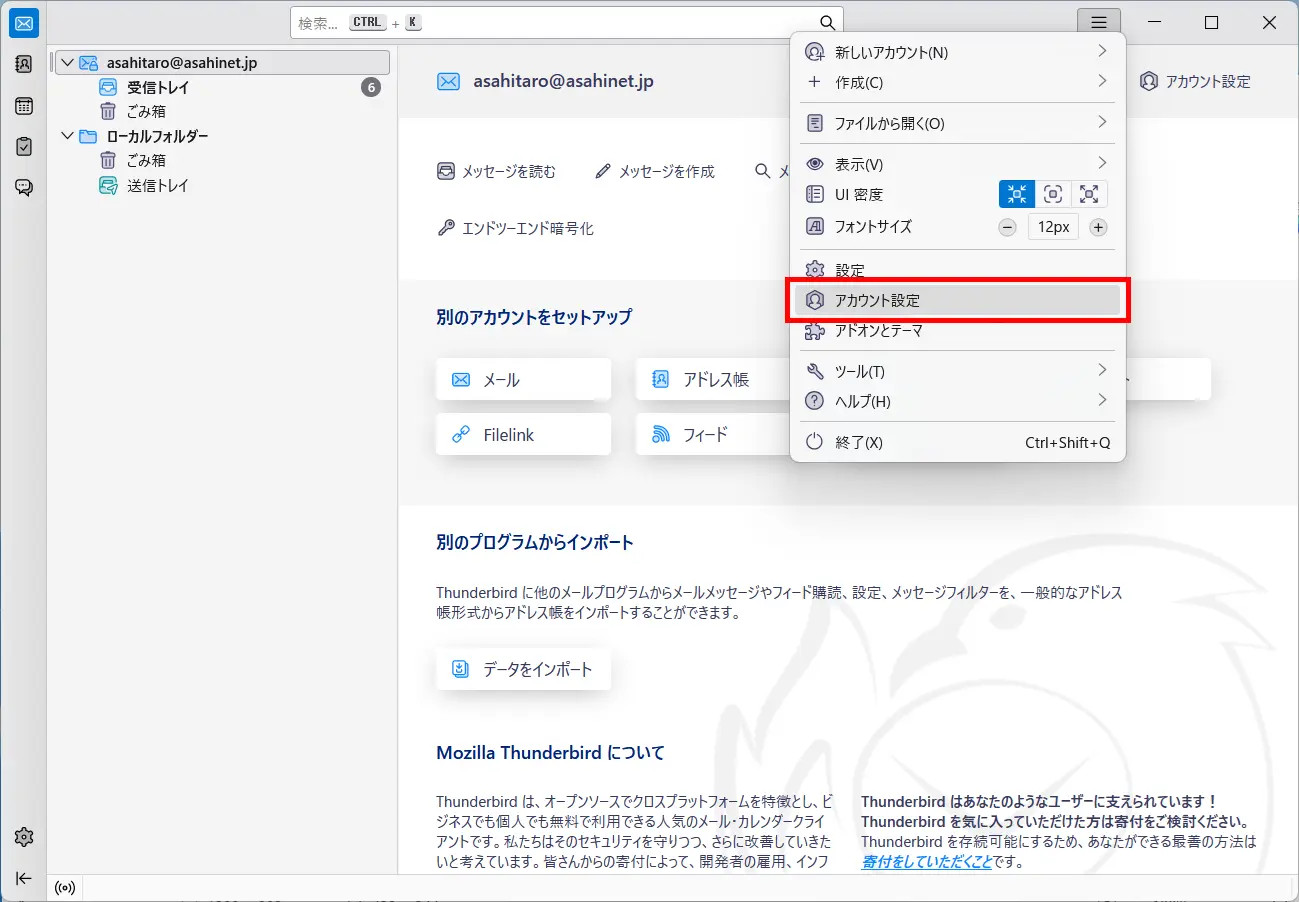
Choose アカウント設定 (= Account Settings) in the menu.
-
STEP3
差出人情報 (= Default Identity)
Choose the email address which you want to confirm in the left menu and check the setting information by referring to the following table.
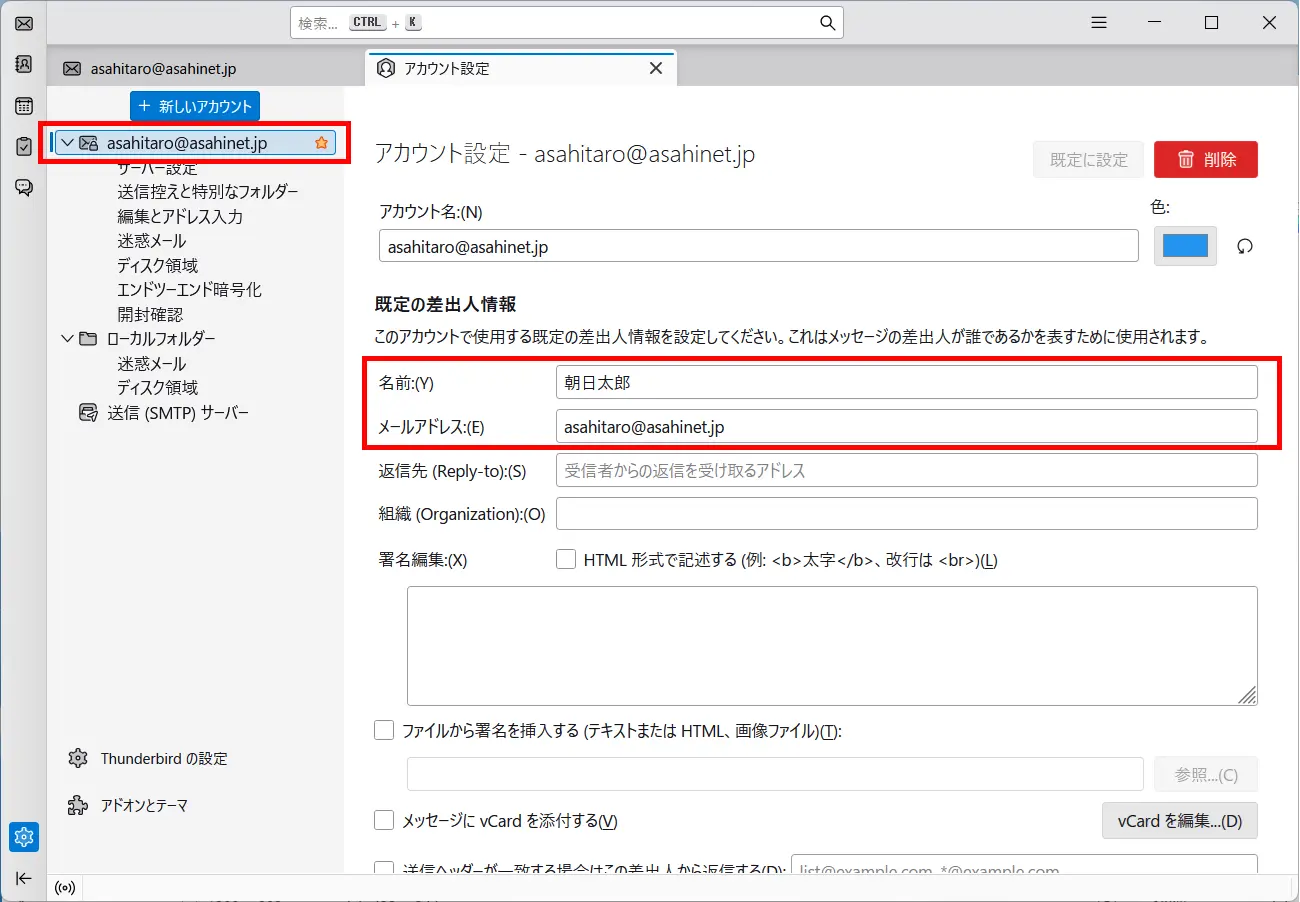
名前 (= Your Name) Your name (any name, optional)
E.g., Asahi, Taroメールアドレス (= Email Address) [Your email address]
E.g., asahitaro@asahinet.jp -
STEP4
サーバー設定 (= Server Settings)
Click サーバー設定 (= Server Settings) in the left menu and check the setting information by referring to the following table.
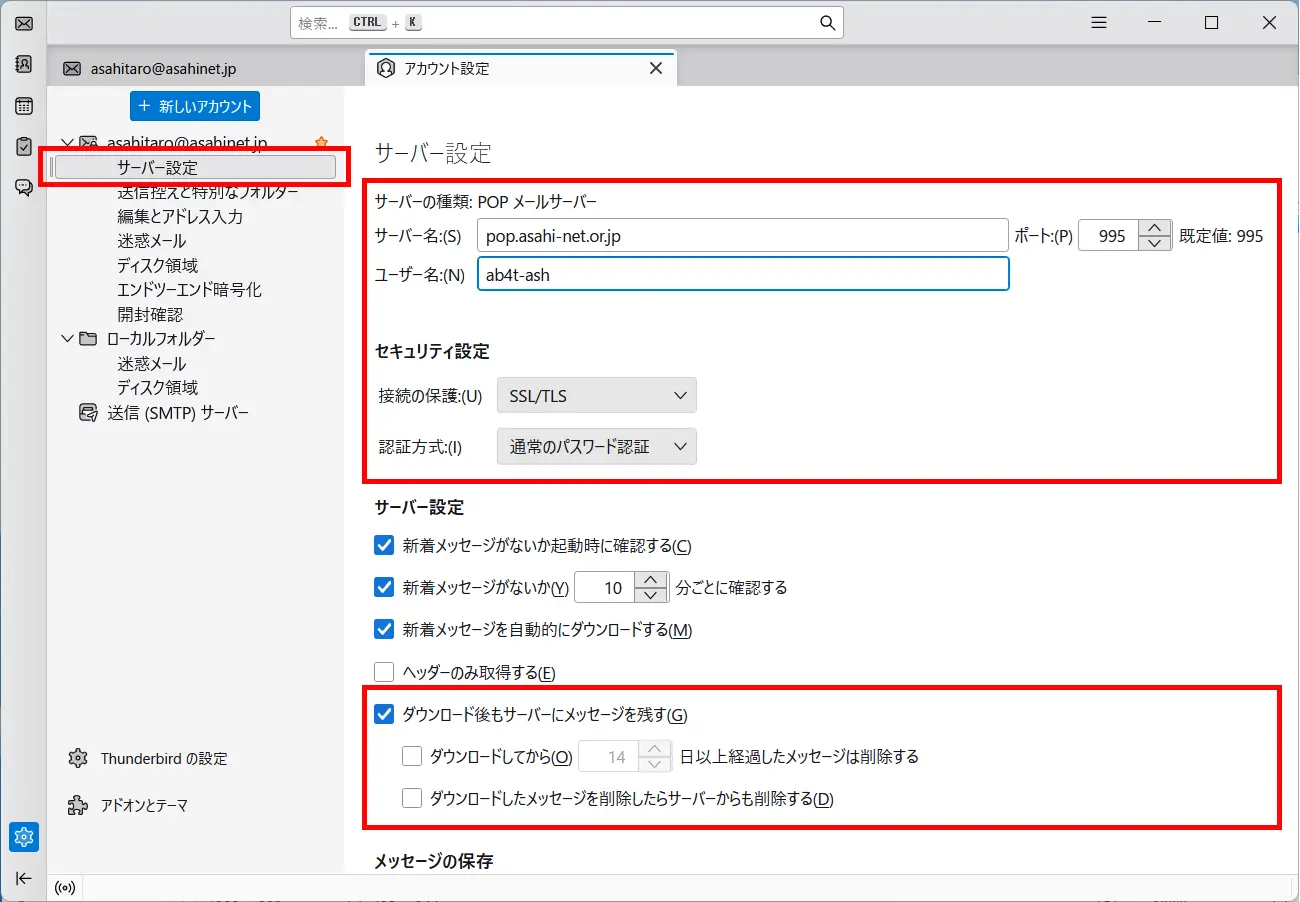
サーバー名 (= Server Name) pop.asahi-net.or.jp ポート (= Port) 995 ユーザー名 (= User Name) Corresponding ID
E.g., ab4t-ash, u1234ab567c, m1234ab567c接続の保護 (= Connection security) SSL/TLS 認証方式 (= Authentication method) 通常のパスワード認証 (= Normal password) ダウンロード後もサーバーにメッセージを残す (= Leave messages on server) To your preference - *If you are using an email address attached to the same ID for IMAP or Web Mail, put a check mark.
ダウンロードしてから○日以上経過したメッセージは削除する (= Leave messages on server for at most xx days) To your preference - *If you are using an email address attached to the same ID for IMAP or Web Mail, do not put a check mark.
ダウンロードしたメッセージを削除したらサーバーからも削除する (= Leave messages on server until I delete them) To your preference -
STEP5
送信 (SMTP) サーバーの設定 (= Outgoing Server [SMTP] Settings)
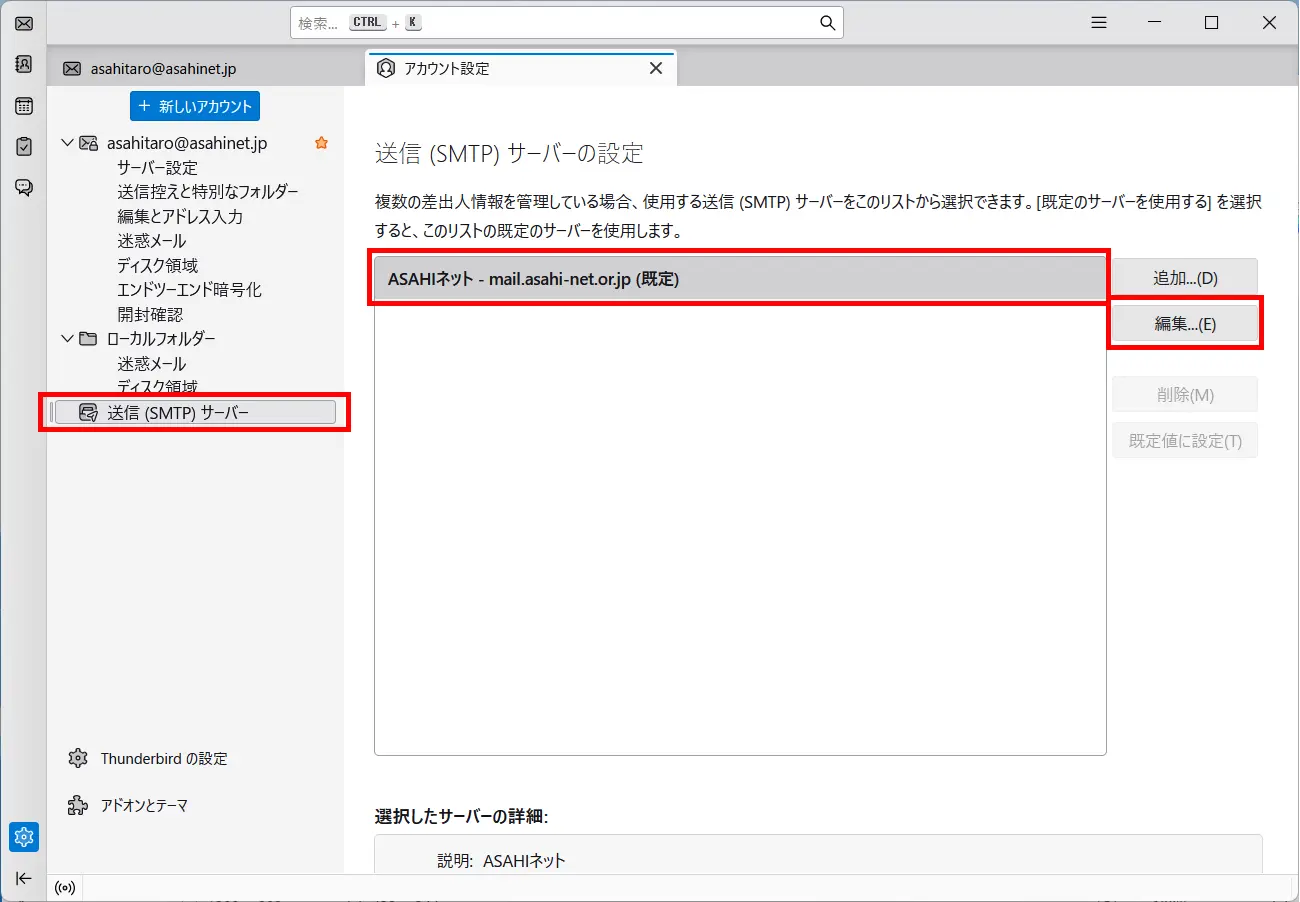
Click 送信(SMTP)サーバー (= Outgoing Server [SMTP]) in the left menu, choose the setting you want to confirm and click 編集 (= Edit).
-
STEP6
送信(SMTP)サーバー (= SMTP Server)
Refer to the following table to set up, and click OK.
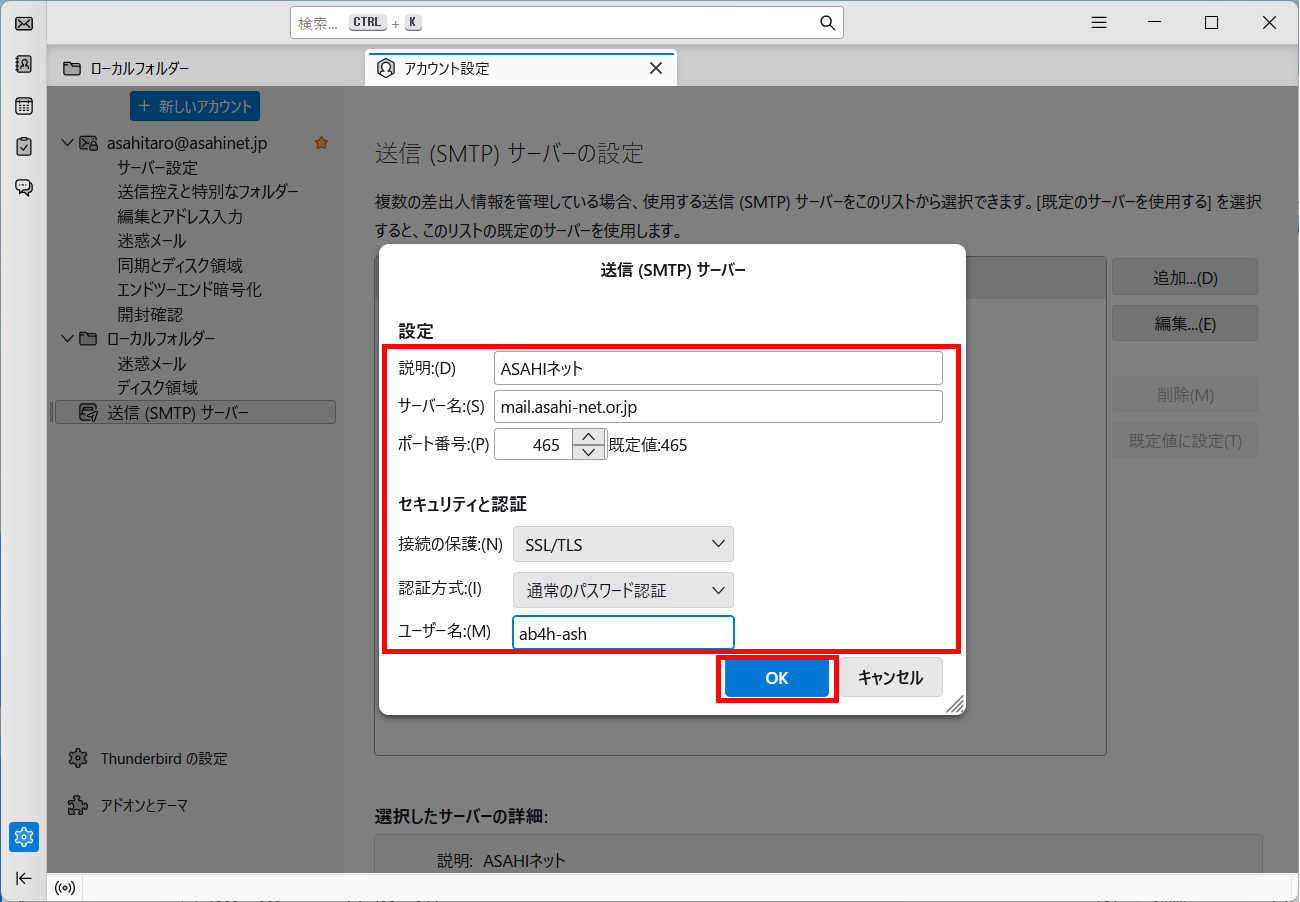
説明 (= Description) (Optional) サーバー名 (= Server Name) mail.asahi-net.or.jp ポート (= Port) 465 接続の保護 (= Connection security) SSL/TLS 認証方式 (= Authentication method) 通常のパスワード認証 (= Normal password) ユーザー名 (= User Name) Corresponding ID
E.g., ab4t-ash, u1234ab567c, m1234ab567c -
STEP7
Complete checking
Click x on the アカウント設定 (= Account Settings) tab.
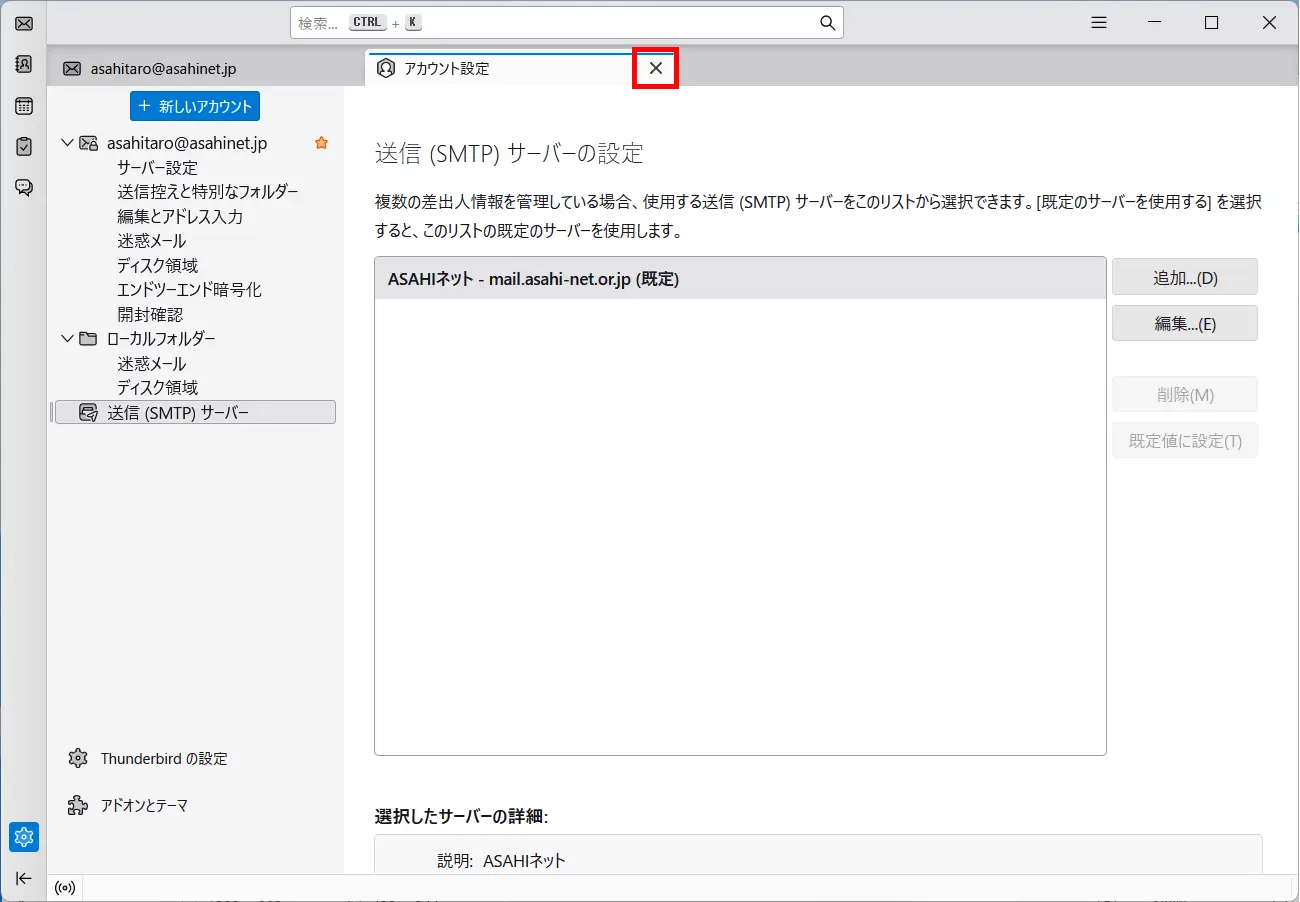
Checking the settings is complete.